Sourcing
Live
Proximity radius search
Find the right candidates exactly where you need them with global, radius-based search designed for both local and remote recruiters.
Proximity radius search feature review
Hiring for a role near Los Angeles? Building a shortlist within 50 miles of a client’s office in New York? Proximity Radius Search lets you filter your candidate database by distance from any postcode or zip code, worldwide.
If a candidate profile includes a valid postcode or zip code, you can instantly refine your results by distance from a chosen location. Simply enter the area, set the radius in kilometers or miles, and view only the candidates who match your geographic criteria.
There is no need for external map tools or spreadsheets. Everything happens inside your database, saving time and keeping your workflow focused.
This feature is ideal for on-site roles, regional hiring campaigns, territory-based sales recruitment, and hybrid positions where local availability matters. You stay in control of geography while building stronger, more relevant shortlists.
1
Global location filtering
Search by postcode or zip code anywhere in the world. There are no geographic limits, making it easy to support international clients and cross-border hiring.
2
Precise radius targeting
Set a specific distance in kilometres or miles and instantly narrow your results. Focus only on candidates who are realistically within reach of the role.
3
Faster shortlists for local roles
Generate location-specific candidate lists in seconds. Deliver highly relevant shortlists to clients without manual filtering.
Jump on a quick demo call to see how this, and many other features, can save you time and help you grow your agency.

FAQs
Can I search globally or is it limited to certain countries?
You can search anywhere in the world, as long as the postcode or zip code is valid and stored on the candidate profile.
What happens if a candidate profile has no postcode or zip code?
Only candidates with a valid location listed can be included in radius-based searches. Keeping location data updated ensures more accurate results.
Can I combine radius search with other filters?
Yes. You can use proximity filtering alongside tags, job titles, industries, and other search criteria.
Does the system support both kilometres and miles?
Yes. You can choose the unit of measurement that suits your region or client requirements.
Is this suitable for remote roles?
Yes. While it is especially useful for on-site and hybrid roles, it also helps identify candidates within specific regions for compliance, time zone, or client preference reasons.
Proximity radius search: How-to guide
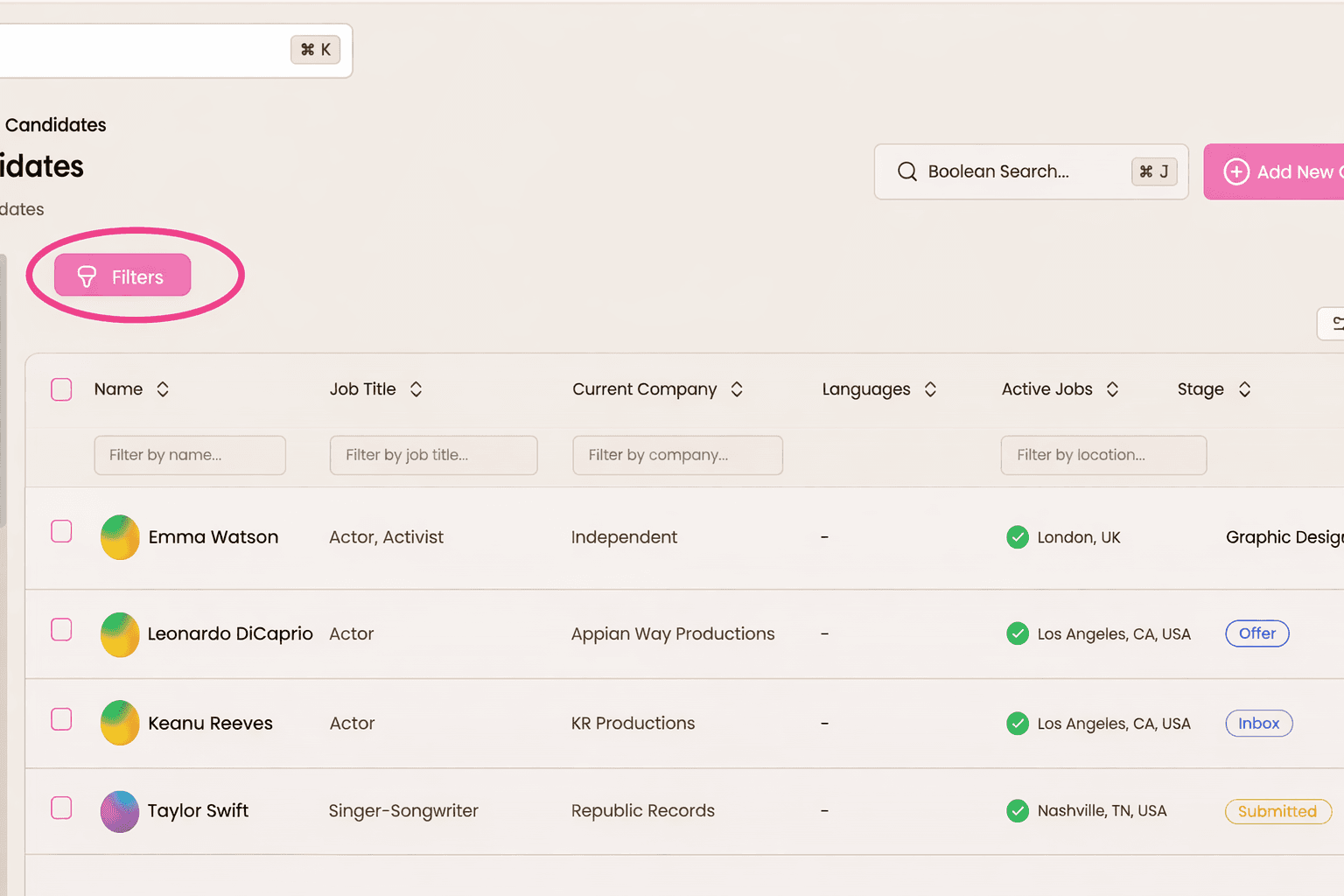
1. Start your search from the candidate database
Begin in your main candidate search view. From here, you can access all standard filters such as tags, job title, and name.
Select the proximity filter to activate radius-based search. This keeps everything within your existing workflow, so there is no need to switch tools or open external maps.
This step ensures your location search works alongside your broader recruitment criteria, not separately from it.

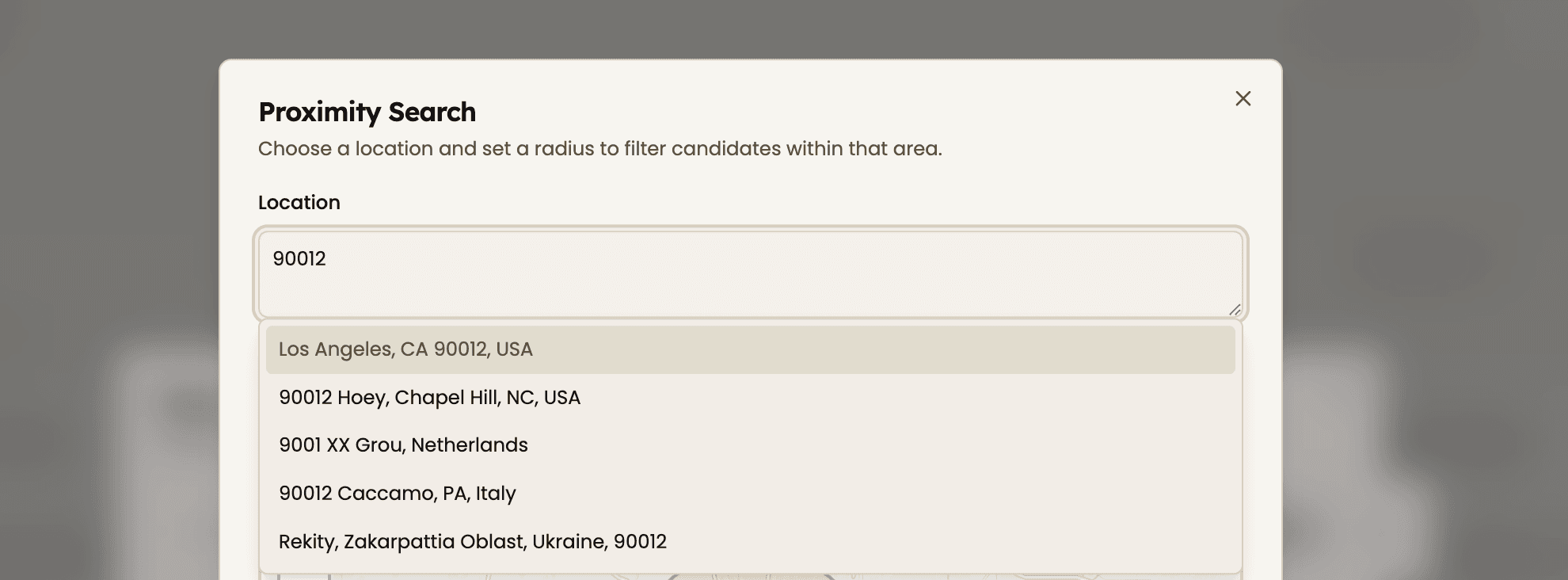
2. Enter a postcode, zip code or city
Type in the postcode, zip code or city of the hiring location. This could be a client’s office, a project site, or a central point within a region you are hiring for.
The system recognises global postcodes, zip codes and areas, allowing you to recruit across cities, regions, and countries. Whether you are hiring in London, New York, or Singapore, the process stays the same.
As long as candidates have a valid location saved in their profile, they can be included in your search results.

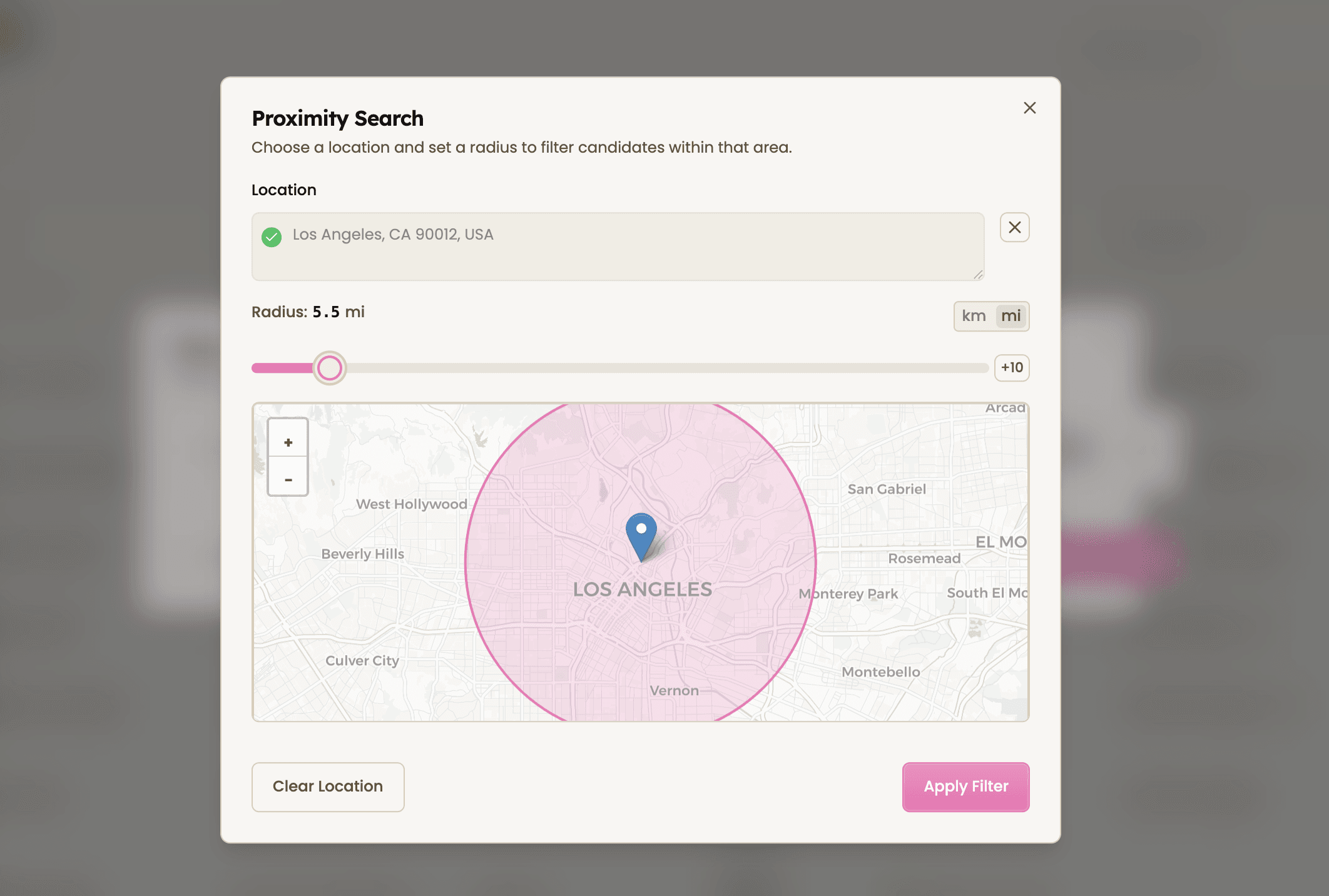
3. Set your radius in kilometers or miles
Next, choose the distance from your selected location. You can define the radius in kilometers or miles, depending on your preference.
This allows you to be precise. For example:
10 km for city-based roles
25 miles for regional coverage
50 miles for wider territory positions
Adjust the radius based on how flexible the role is. For on-site roles, you may want a tighter search. For hybrid or field-based positions, you might expand the range.

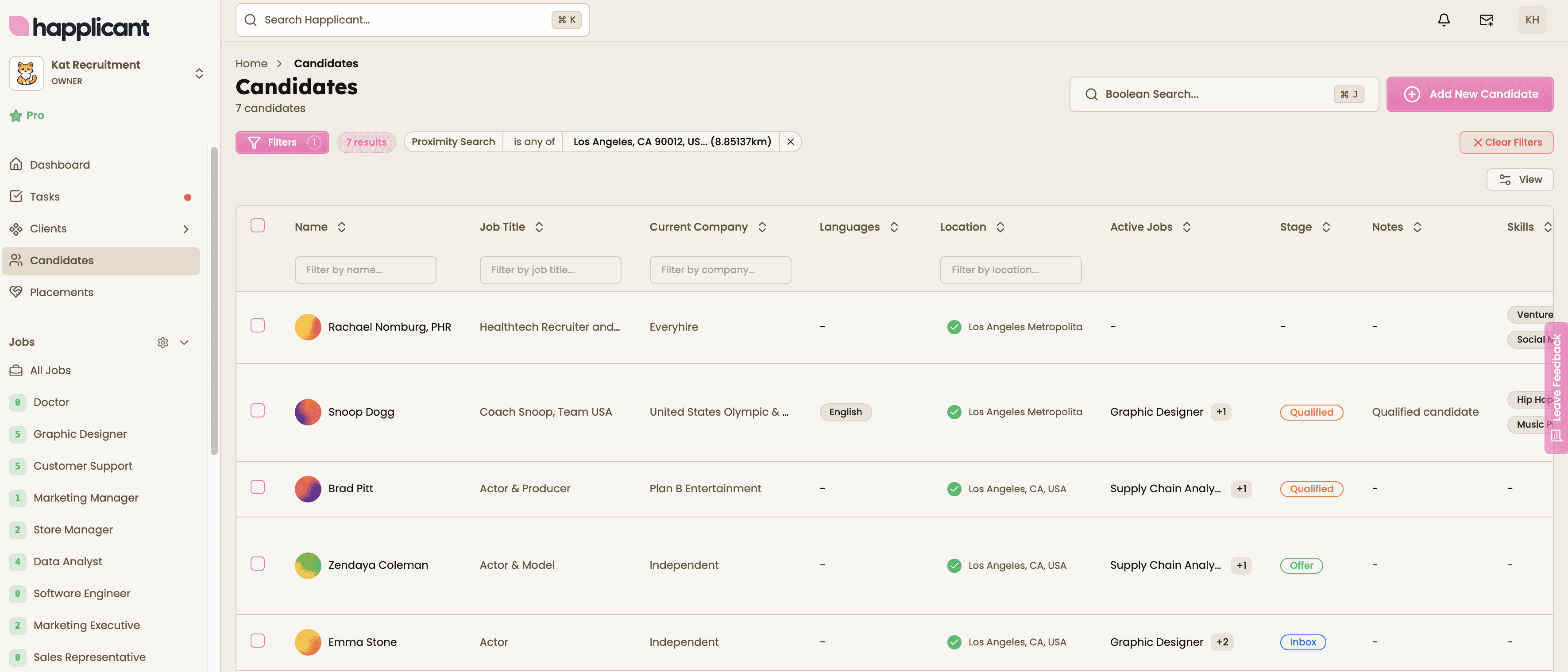
4. Refine, review, and save your results
Once applied, the system instantly displays candidates within your chosen radius. From here, you can layer additional filters such as skills, seniority, availability, or industry experience.
Review the shortlist and save the search for future roles if needed. This is especially useful for recurring client requirements in the same location.
You can also quickly generate a location-specific shortlist to share with your client, confident that every candidate meets the geographic criteria.


Feeling stuck or unsure how to begin?
Our friendly support team is here to guide you through every step. Just drop us a line: support@happlicant.com