Screening
Live
Interview mode
Stay focused during interviews with just the candidate and your notes in view.
Interview mode feature review
Running interviews requires focus, not clutter. Interview Mode simplifies the candidate profile into a clean, structured view so you can stay fully engaged in the conversation.
Switch between key tabs like resume, notes, and job history without leaving the profile. Capture feedback as you go and keep everything in one place while the conversation is still fresh.
Once the interview is complete, you can immediately move the candidate to the next stage. No extra steps, no switching between pages. Just a smooth, focused workflow built for recruiters who want to move quickly and stay organized.
1
Minimal distraction interface
A simplified view keeps your attention on the candidate and the conversation
2
Live notes and easy navigation
Take notes in real time while quickly switching between resume, notes, and job details
3
Move candidates forward instantly
Update pipeline stages right after the interview without leaving the profile
Jump on a quick demo call to see how this, and many other features, can save you time and help you grow your agency.

FAQs
When should I use Interview Mode?
Use it during candidate calls or interviews to stay focused and keep all relevant information in one place.
What can I see in Interview Mode?
You can view the candidate’s resume, notes, and job information, and switch between them easily during the interview.
Can I take notes while in Interview Mode?
Yes, you can write and update notes in real time without leaving the profile.
Can I move a candidate to the next stage from Interview Mode?
Yes, you can update the candidate’s stage immediately after the interview.
Do I need to leave Interview Mode to access other information?
No, everything you need for the interview is accessible within the same view.
Interview mode: How-to guide
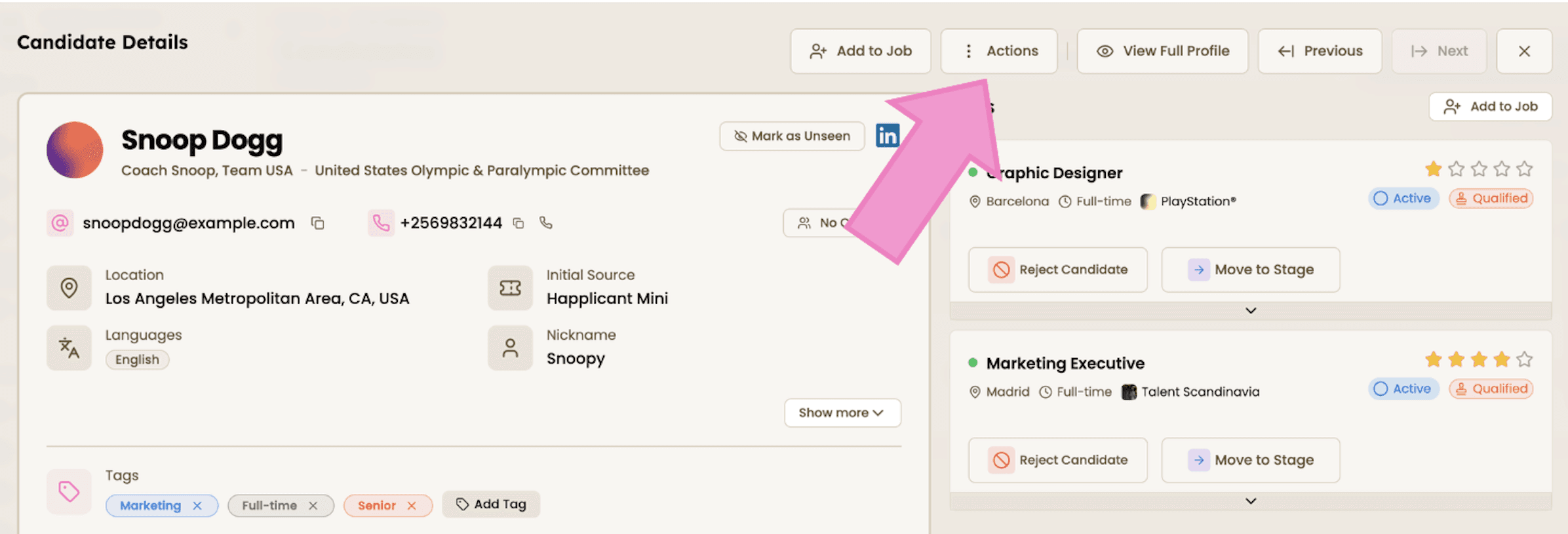
1. Open a candidate profile and enter interview mode
Go to any candidate you are about to interview and click 'actions'

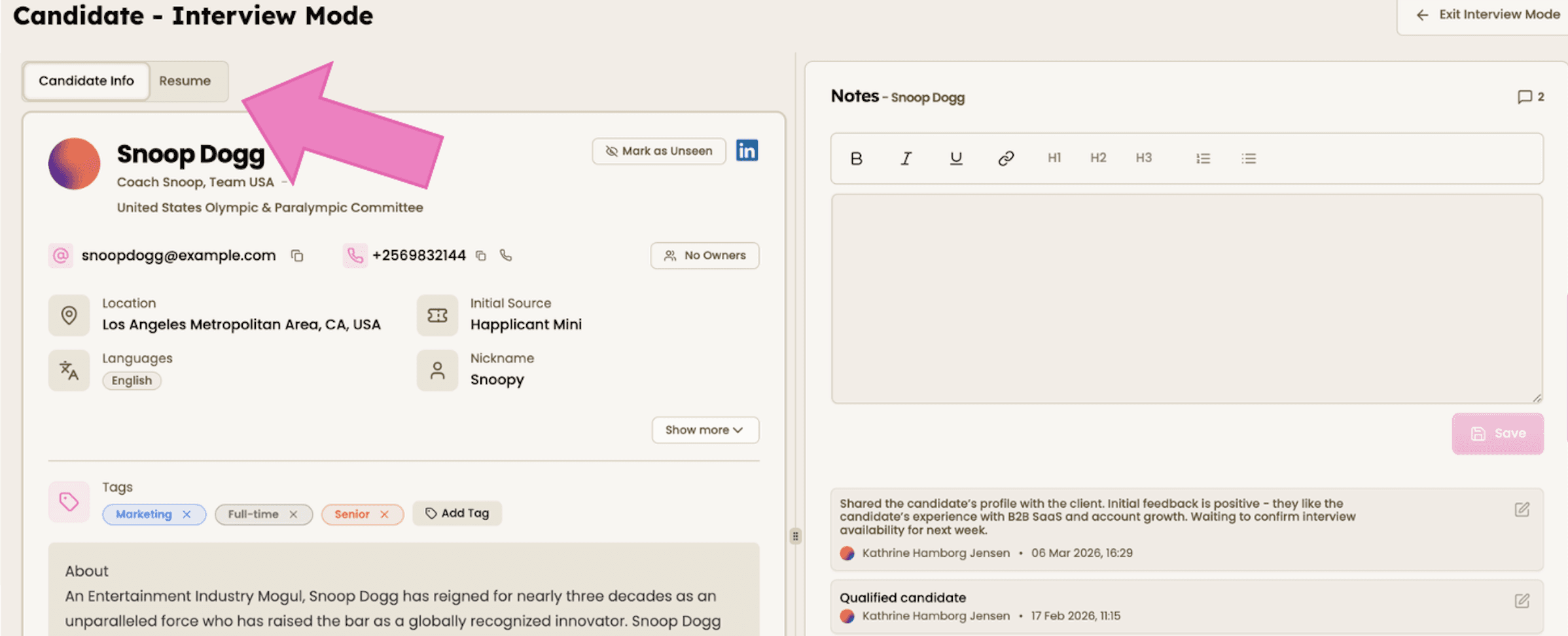
2. Review key information
Use tabs to access the resume and job details during the conversation.

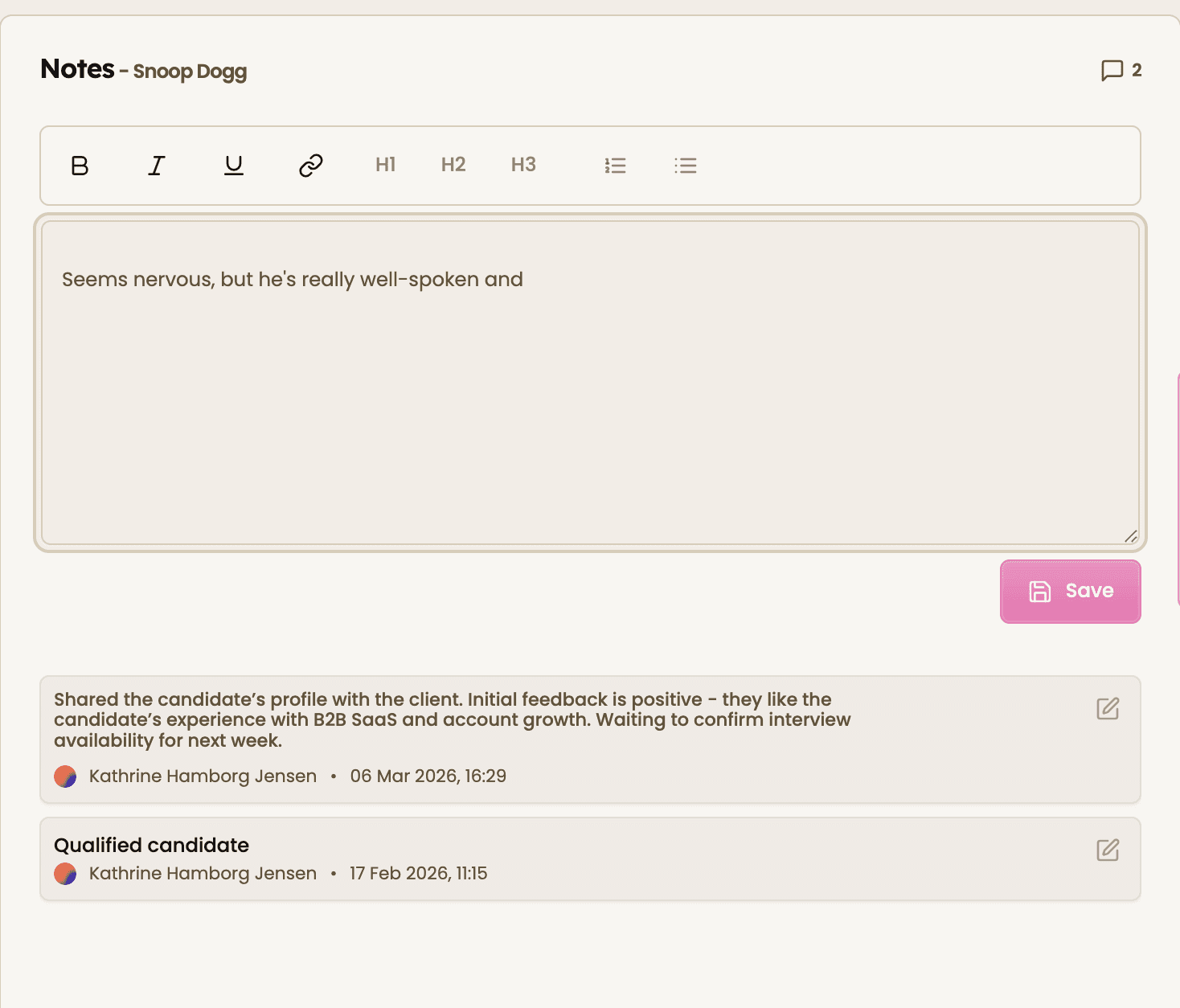
3. Take notes live
Write down feedback and insights while speaking with the candidate.

4. Move to the next stage
After the interview, click 'exit interview mode' and update the candidate’s stage directly from their profile.

Feeling stuck or unsure how to begin?
Our friendly support team is here to guide you through every step. Just drop us a line: support@happlicant.com