Client CRM
Live
Client bulk import
Import multiple clients and contacts in minutes and get your CRM set up faster.
Client bulk import feature review
Adding new clients and contacts one by one takes time and slows down your workflow. With bulk import, you can upload a CSV or Excel file and bring all your client and contact data into Happlicant at once.
The system maps your data and creates structured client records along with associated contacts, so everything is organized from the start. This is especially useful when switching from another CRM or setting up a new workspace.
Built for recruiters and small teams, this feature helps you get up and running quickly without spending hours on manual data entry. If you need help, our team is available to guide you through the process.
Client bulk import key benefits
1
Save hours on setup
Import all your clients and contacts at once instead of adding them manually one by one.
2
Clean and organized data
Your client and contact information is structured and ready to use inside your CRM.
3
Support when you need it
Get help from our team to make sure your import runs smoothly.
Jump on a quick demo call to see how this, and many other features, can save you time and help you grow your agency.

FAQs
What file format should I use?
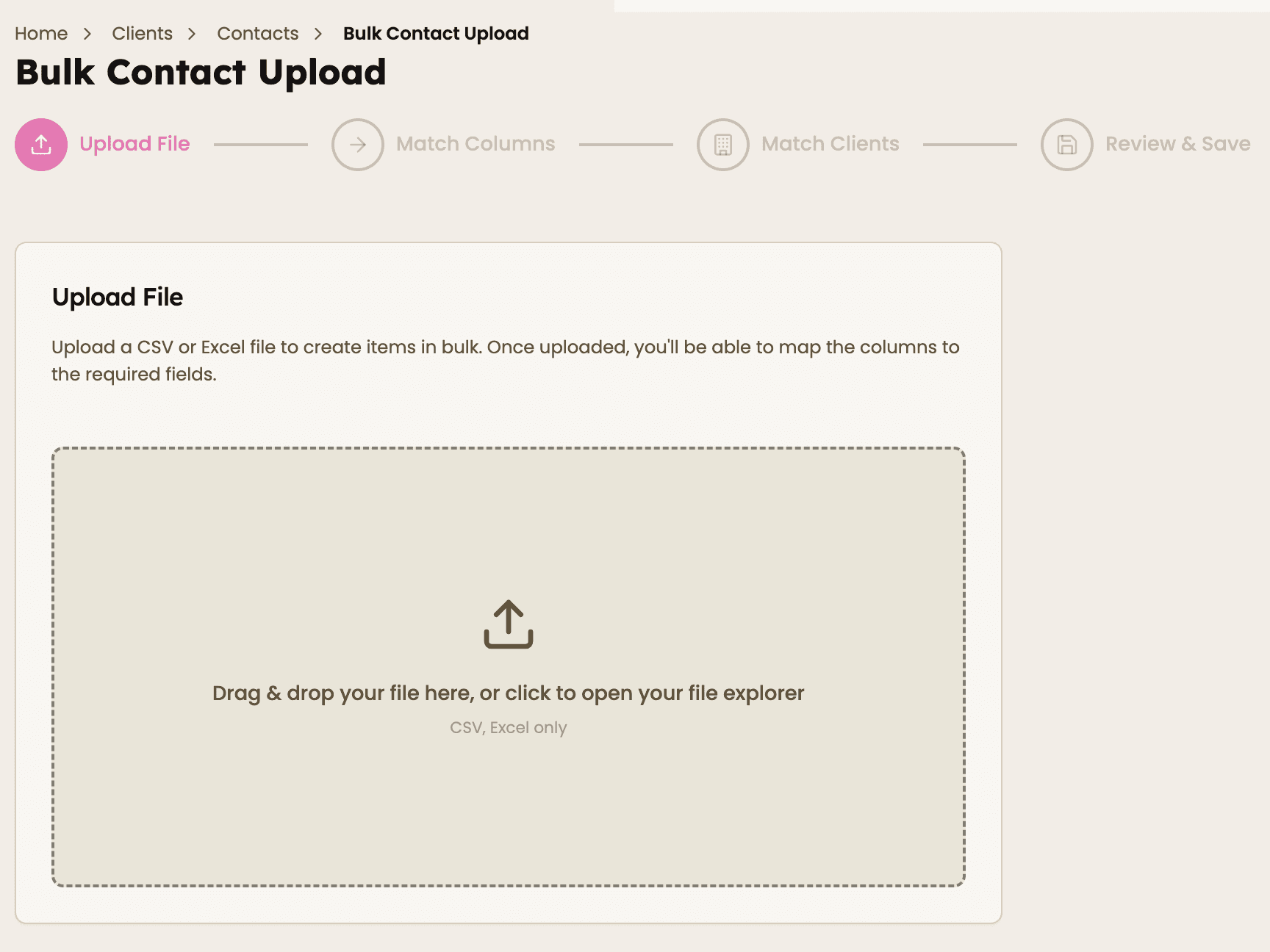
You can upload a CSV or Excel file. Make sure your file is properly formatted before importing.
How should I structure my file?
Use clear column headers such as Company Name, Email, or for contact use First Name, Last Name, Role etc. and remove any empty or unnecessary columns. Clean files lead to more accurate imports.
Why didn’t my data import correctly?
This is often caused by unclear headers, empty columns, or mismatched fields. Review your file structure and field mapping before importing.
Can I import both clients and contacts together?
Yes. You can include contact details (such as name, email, and phone) alongside each client in your file, and they will be created together.
Can I get help with my import?
Yes, our team can assist you to make sure your file is set up correctly and your data imports smoothly.
Client bulk import: How-to guide
1. Prepare your file
Create or export a CSV or Excel file with your client data.
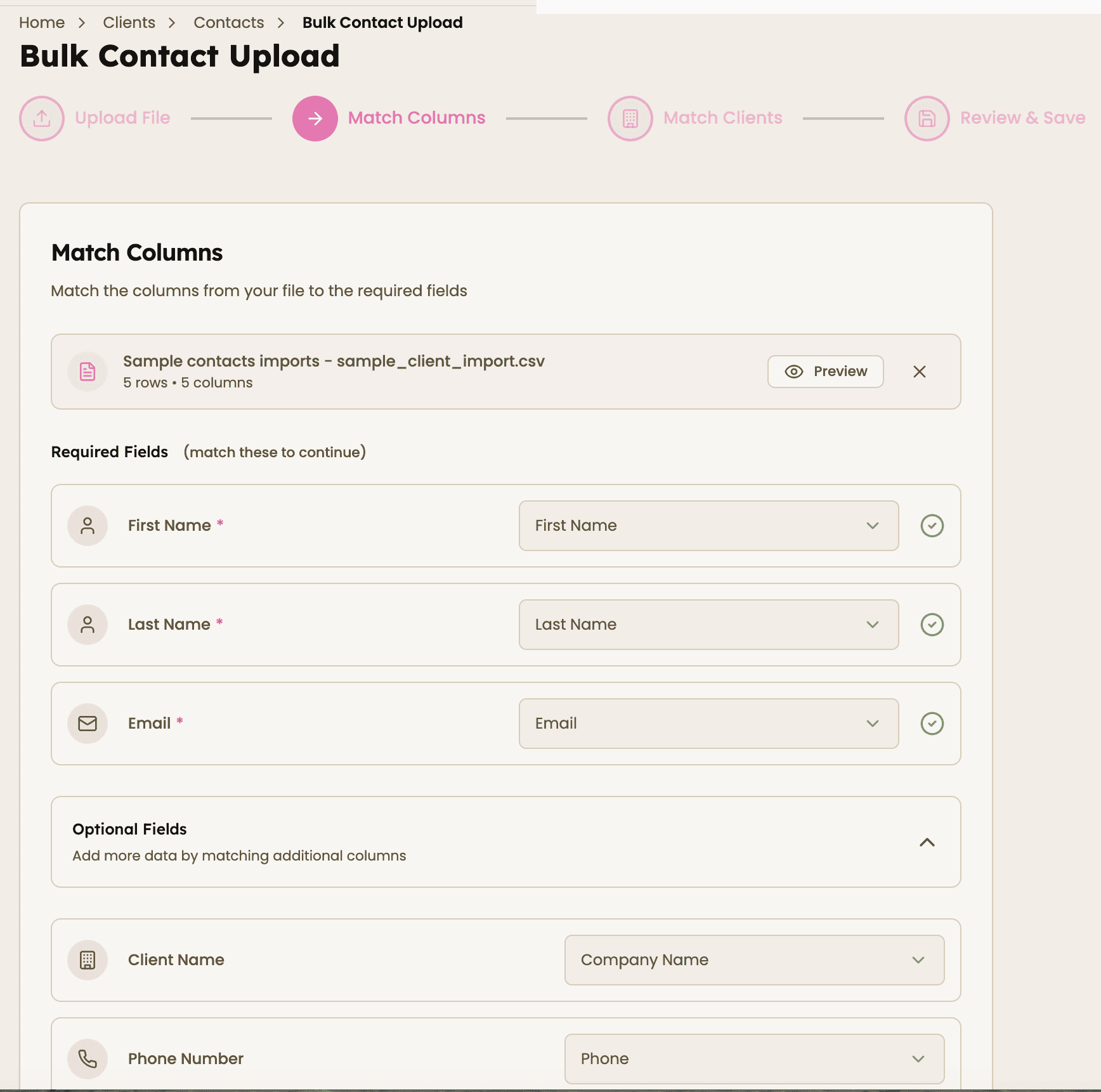
Make sure your file has clear column headers (for example: Company Name, Email, Phone) and no empty or unnecessary columns.

2. Upload your file
Select and upload your CSV or Excel file.
3. Map your fields
Match each column from your file to the correct field in Happlicant.
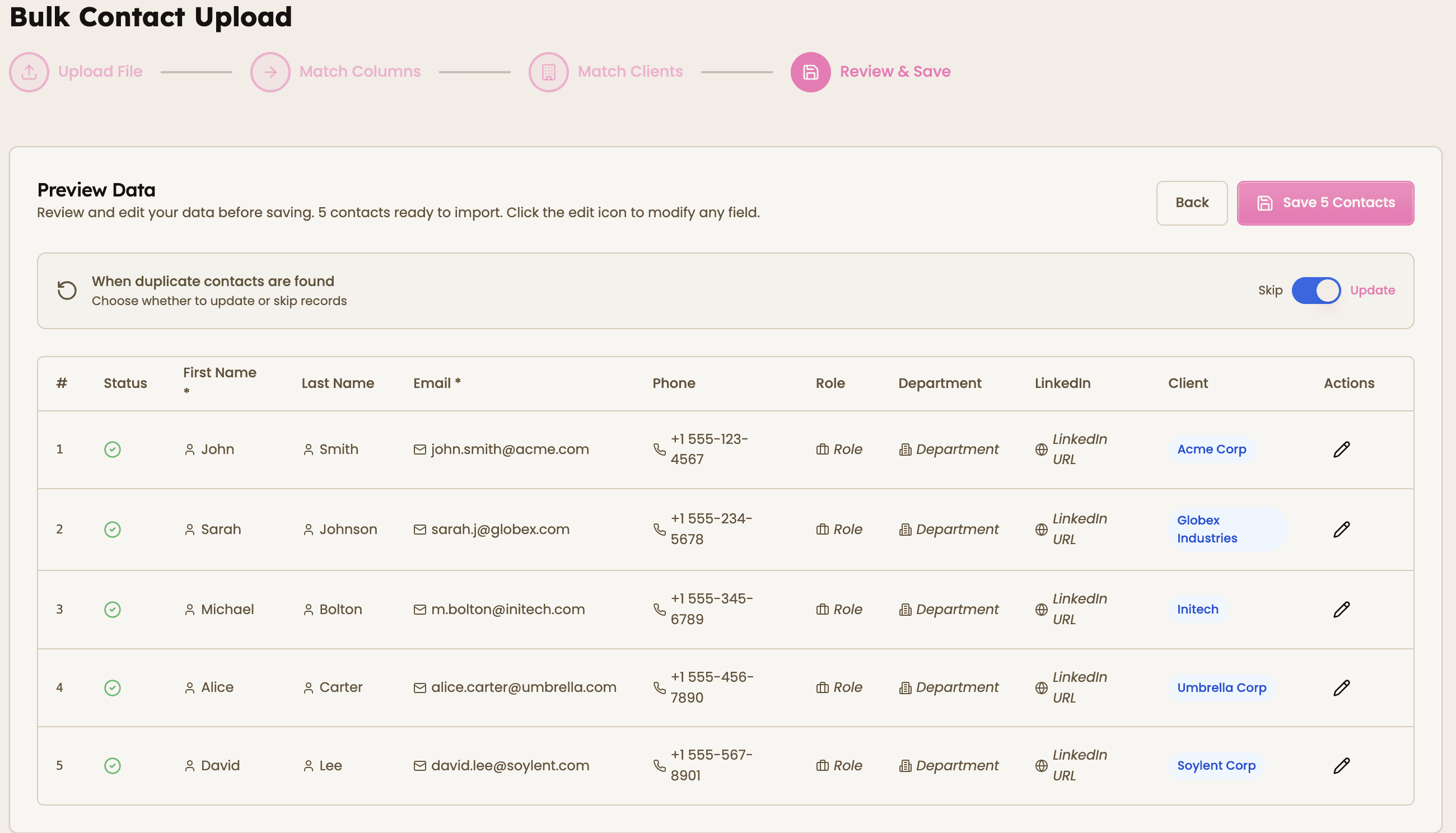
4. Review and import
Double-check your data and start the import.
💡 Tip: Clean, well-structured files lead to faster and more accurate imports.
Feeling stuck or unsure how to begin?
Our friendly support team is here to guide you through every step. Just drop us a line: support@happlicant.com