
Candidates
Live
Candidate bulk import
Simplify your candidate relationship management system with our bulk upload tool, making it easy to create multiple candidate profiles from a single, streamlined file import and automated column matching.
Candidate bulk import feature review
Happlicant’s candidate bulk import tool makes it effortless for independent recruiters and small agencies to centralize all candidate data in one place. Instantly upload existing databases by importing CSV files directly into your recruitment agency CRM.
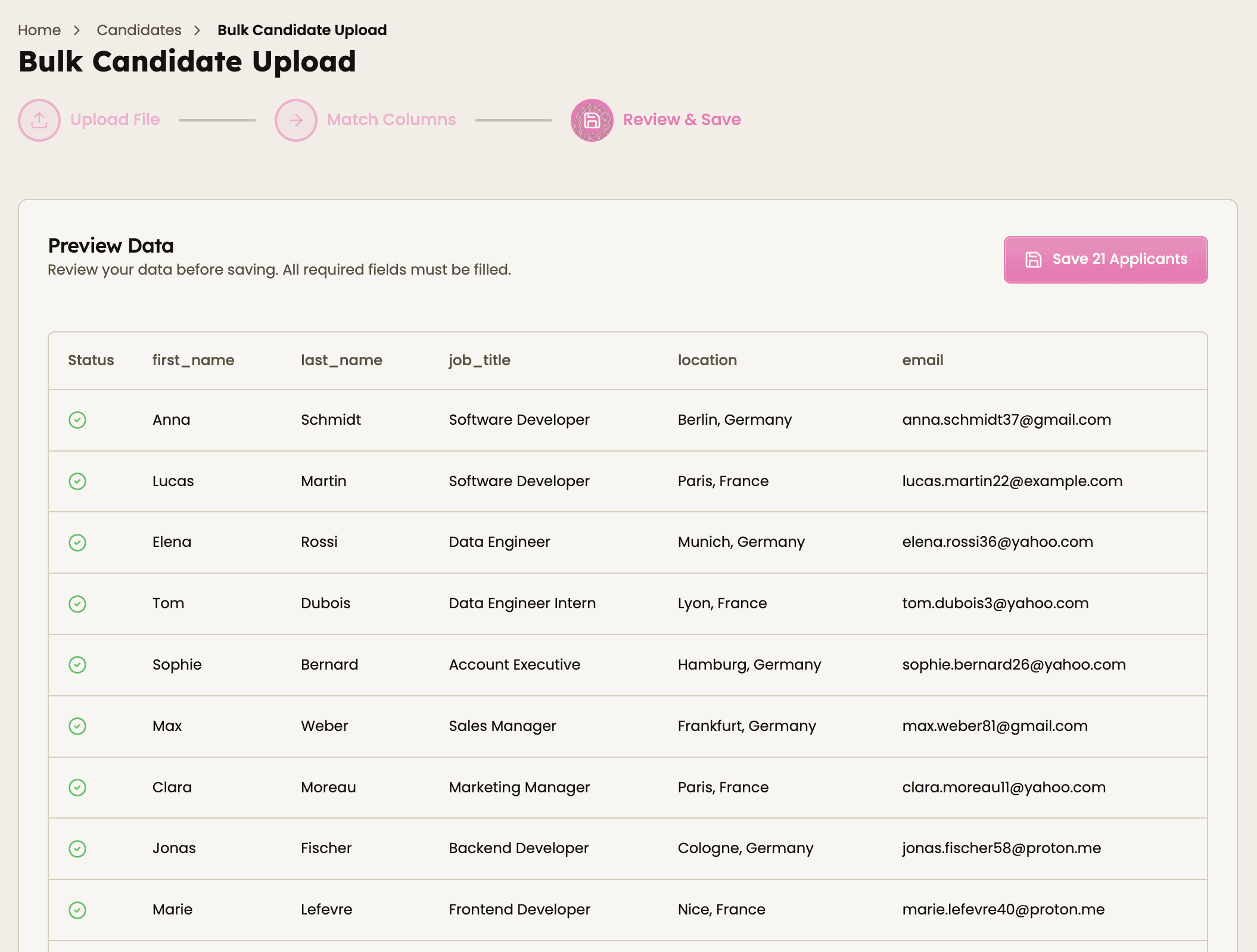
Eliminating tedious manual entry and reducing errors. Our system automatically maps matching columns, letting you import candidate details quickly and accurately.
A core feature of our recruitment agency software, this tool ensures a single source of truth for all candidate information. Effortlessly manage profiles, link documents, edit records, and seamlessly integrate new applicants as they arrive. Stay organized, boost efficiency, and keep your focus on sourcing top talent and driving agency success.
1
Faster candidate onboarding
Quickly upload large volumes of candidate data in one go, eliminating manual entry and significantly speeding up the process of building talent pools.
2
Accurate data mapping
Our smart column-matching system automatically aligns your file fields with CRM fields, reducing input errors and ensuring clean, consistent candidate records.
3
Centralized candidate database
Consolidate all candidate information into a single, easy-to-manage recruitment CRM, giving your agency an organized, reliable talent database.
Jump on a quick demo call to see how this, and many other features, can save you time and help you grow your agency.

FAQs
What happens if a candidate already exists in the system?
If a candidate with the same email address already exists, the system will notify you and prompt you to review the profiles. You can then choose which information should be merged into the existing candidate record.
Why does my file need headers?
Headers help the system understand what each column represents. For example: first name, last name, email, phone, linked URL etc.
Without headers, the system cannot properly map your candidate data during the import process.
Why didn't my import work?
If an import fails, check the following:
The file contains column headers
Each candidate is on one row
The file is saved as CSV or Excel
Unnecessary columns have been removed
Email fields are formatted correctly
Correcting these issues usually resolves most import problems.
Candidate bulk import: How-to guide
1. Prepare your spreadsheet
Create a spreadsheet (CSV or Excel file) containing the candidates you want to import.
Make sure your file includes column headers such as:
First Name
Last Name
Email
Phone
LinkedIn
Company
Each candidate should be listed on a separate row.
Before uploading, remove any unnecessary columns so the file only contains relevant candidate information. This helps ensure the data imports correctly.
2. Upload your file
Go to the Candidates section and select Bulk Import in add new candidate. Upload your prepared spreadsheet file.
The system will read the file and prepare the candidate data for import.
3. Map the fields
Match the columns from your spreadsheet to the correct fields in Happlicant (for example: Email → Email field).
This ensures all candidate information is placed in the correct location.
4. Confirm and import
Once everything looks correct, confirm the import.
Your candidates will then be added to your database and can immediately be organized, tagged, and added to pipelines.



Feeling stuck or unsure how to begin?
Our friendly support team is here to guide you through every step. Just drop us a line: support@happlicant.com